
In the LACHA app, you book KTX in 8 steps (app 1.3.0, checked 2026-10-16). Tap the KTX card on the Home screen, set your departure and arrival stations, passengers, and date, then tap [Search]. Choose a train, go in with [Select Seat] or [Reserve], and enter the purchaser's phone number and date of birth plus each passenger's name and date of birth. Next, pick a Lacha T Voucher amount and a payment method (or LACHA Money), check the terms box, tap [Confirm], then check the amount in the payment confirmation window and tap [Confirm] there too. Once payment is done, open your QR ticket with [View Ticket] and [View Tickets], and later open it again from the [Order History] tab at the bottom.
LACHA is a transport booking and payment app for foreigners living in or traveling around Korea. From the Home screen you can choose taxi requests, KTX, express buses, 5/6-seat taxis (VAN), and the Airport Express Railway, and the app screen comes in 8 languages (2026-08-30 app 1.2.33, 2026-10-15 app 1.3.0). According to the 'KTX Cancellation Regulations', you don't need to pick up a paper ticket at a station counter on your travel day; just check the car and seat in your order details and board.
There are three things first-time users tend to miss. First, on the booking screen you can't leave the phone number and date of birth in 'Customer Information (Required)' blank. The phone number field starts with +82 (Korea), and you can tap it to choose another country's code, but the booking we paid for in full on 2026-10-16 used a +82 Korean number (we couldn't confirm whether a booking goes all the way through with an overseas number). Second, as the app's notice says, you can't book a train ticket on its own, so you have to choose a Lacha T Voucher (10000, 5000, or 3000 KRW). If the voucher is larger than the maximum discount on the train card, the expected payment amount can end up higher than the fare. In our checks, choosing a voucher equal to or smaller than the maximum discount kept the expected payment amount the same as the fare. Third, KTX tickets bought on LACHA can't be changed (schedule, seat, or number of passengers), and from 2 days before the travel date a cancellation fee of 15% up to 100% applies.
Here are the 8 steps in one table (Android app 1.3.0, checked from 2026-10-15 to 10-17 on the Korean-language screen; button names are given as they appear on the English screen).
| Step | Screen | Buttons and fields to tap | What to check |
|---|---|---|---|
| 1. Select KTX | Home | KTX card with the 'High-speed rail' tag | That you're logged in |
| 2. Search for trains | KTX search | From and To stations, passenger row, date row, [Search] | The only tab is [One-way] |
| 3. Choose a train and seat | Train list, Select Seat | [Select Seat] or [Reserve], then [Reserve] at the bottom of the seat map | Sold Out labels, Maximum Discount badge |
| 4. Passenger details | Reservation | 'Customer Information (Required)', 'Passenger Info', [Same as purchaser] | Country code, date of birth |
| 5. Voucher and payment method | Reservation (middle) | Lacha T Voucher amount, 'Use LACHA Money', 'Payment Method' | That the voucher isn't larger than the train's maximum discount (10000 KRW is selected at first) |
| 6. Agree and pay | Reservation (bottom), payment confirmation window | Check 'KTX Cancellation Regulations', [Confirm], then [Confirm] in the window | Expected payment amount |
| 7. QR ticket | Booking completion, order details, ticket | [View Ticket], [View Tickets], QR icon | Car and seat number |
| 8. View it again | Order History | [Order History] tab at the bottom, KTX order card | To cancel, use [Cancel] at the bottom of the order details |
Numbers and rules to know before booking
Account and app language
Log in to your LACHA account before booking. If you aren't logged in, there's a [Sign In] button on the right of the light blue box at the top of the Home screen (the box that shows your LACHA Money balance once you log in). On the sign-in screen, log in with your email and password, or use [Register] or one of the 7 social login buttons below (Kakao, Naver, LINE, WeChat, Facebook, Apple, Google) (2026-08-30, app 1.2.33). The required sign-up fields were name, email, password, and password confirmation, and the phone number was optional (checked the same day). All of this article's checks on 2026-10-15 and 10-16 were done while logged in, and we couldn't confirm whether KTX booking works without logging in. On the KTX booking screen, you must enter the purchaser's phone number (step 4).
The app screen comes in 8 languages: 한국어, English, 简体中文, 繁體中文, 日本語, Tiếng Việt, Русский, and แบบไทย. Change the language from the globe icon at the top right of the Home screen, and KTX station names and buttons switch to that language too. For example, on the English screen, the stations appear as Seoul and Busan, and the seat button appears as [Select Seat] (checked 2026-10-15). If you speak another language, choose English. Button names in this article are written exactly as they appear on the English screen.
What to have ready
Here's what you enter or choose on the booking screen. There was no field for a passport number on the booking screen (2026-10-16, app 1.3.0). If several people are traveling, writing down every passenger's name and date of birth in advance makes entry faster.
| What to prepare | Where it goes | Good to know |
|---|---|---|
| LACHA account | [Sign In] at the top of the Home screen | The required sign-up fields are name, email, and password. You can also log in with any of 7 social accounts |
| Purchaser's phone number | Step 4, 'Customer Information (Required)' | There's a separate country code field, which shows +82 at first |
| Purchaser's date of birth | Step 4, 'Customer Information (Required)' | Tap the field and pick from the calendar, and it's entered as 8 digits (year, month, day) |
| Passenger names and dates of birth | Step 4, 'Passenger Info' | They must fit the birth-date ranges in the step 2 passenger window |
| Lacha T Voucher amount | Step 5, 'Ticket' | You can't book a train ticket on its own |
| Payment method or LACHA Money | Step 5, 'Use LACHA Money' and 'Payment Method' | Top up LACHA Money in advance with [Recharge] on the Home screen, and type in the amount to use yourself |
LACHA KTX booking in numbers
| Item | What we found | Checked on (app 1.3.0) |
|---|---|---|
| Seoul to Busan fare and travel time example | October 16, 05:13 KTX 00001 Standard, 53,900 KRW for adults and 26,900 KRW for children, arriving 07:50 (2 hours 37 minutes) | 2026-10-15 |
| Maximum Discount badge | Differed by train: 3,000, 5,000, or 10,000 KRW | 2026-10-15, 10-16 |
| Booking window | 'Read before booking train tickets' says from departure one day after the booking date up to one month ahead. The calendar opens about two months ahead (to December 15 as of October 15). We paid for a train 7 days out | 2026-10-15, 10-16 |
| Maximum tickets per person | 9 (adults and children combined), and infant seats (ages 0 to 6) aren't sold | 2026-10-16 |
| Seat class | Standard only | 2026-10-15, 10-16 |
| Lacha T Voucher | One of 10000, 5000, or 3000 KRW (10000 KRW selected at first) | 2026-10-15, 10-16 |
| Payment methods | 17 e-wallets (E-Wallet), VISA, Master/JCB/AMEX/UnionPay, Korean Card, KakaoPay/NaverPay/TossPay, Bank Transfer | 2026-10-15, 10-16 |
| LACHA KTX cancellation fee | Full refund up to 3 days before the travel date, 15% 2 days before, 20% 1 day before, 30% on the travel day up to 1 hour before departure, 100% within 1 hour | 2026-10-16 |
This article only covers how to book with the LACHA app and the rules of LACHA's KTX product. Other ways to book, such as the Korail website or a station counter, are in How Foreigners Can Book KTX Tickets, and seat classes, discounts, and refund rules are in KTX Seat Classes, Discounts & Refund Rules.
1. Select KTX on the Home screen
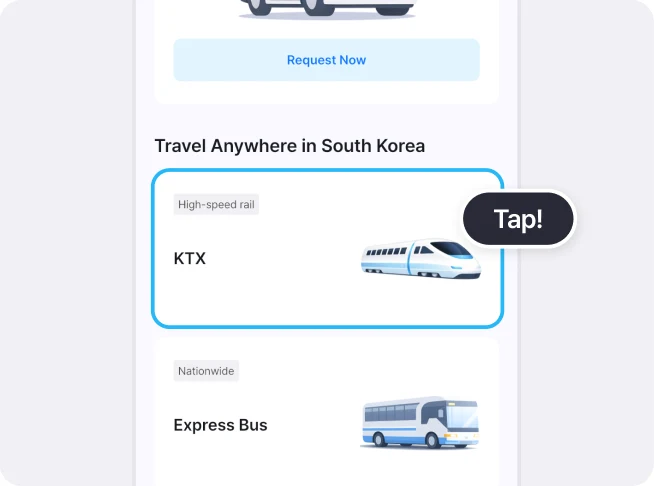
At the top of the LACHA app's Home screen are your LACHA Money balance with [View History] and [Recharge], the Korea Travel Guide banner, and the taxi [Request Now] button (2026-10-16, app 1.3.0). Scroll down a little and you'll see the 'Travel Anywhere in South Korea' list. Tap the KTX card, which has a small 'High-speed rail' tag. The same list continues with the Express Bus card tagged 'Nationwide', and there are also cards for 5/6-seat taxis (VAN) and the Airport Express Railway (2026-08-30, app 1.2.33). Change the app language before you start (see 'Account and app language' above).
At the very bottom of the screen are 3 tabs: [Home], [Order History], and [My Page]. To open your ticket again after booking, use the [Order History] tab (step 8).
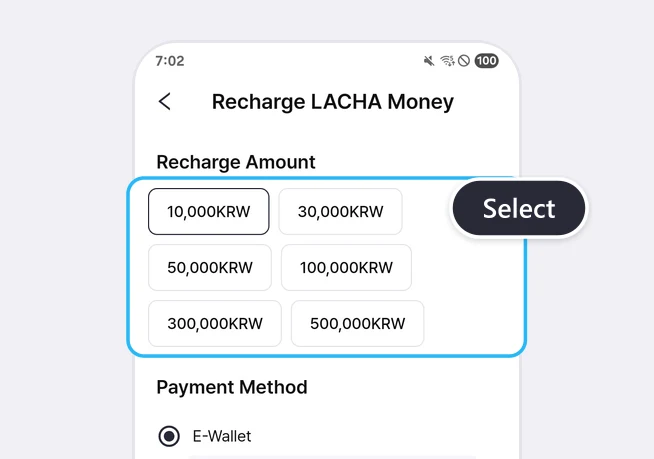
To pay with LACHA Money, top it up first with [Recharge] on the Home screen. The recharge screen offered 6 amounts: 10,000, 30,000, 50,000, 100,000, 300,000, and 500,000 KRW (2026-10-15). You spend the LACHA Money you've topped up in the 'Use LACHA Money' section in step 5.
2. Pick your stations, date, and passengers, then tap [Search]
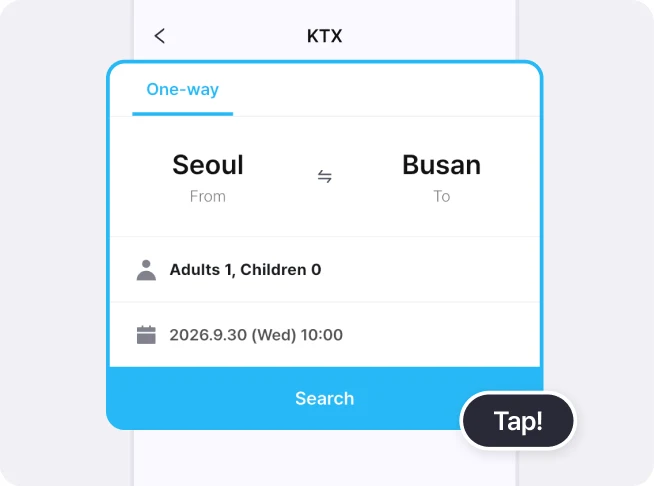
At the top of the KTX search screen there's just one tab, [One-way]. Below it, in order, are the departure and arrival stations, the passenger row, the date row, and the blue [Search] button.
Departure and arrival stations
Tap the departure station (Seoul in the example screen) and a station picker opens along with the keyboard (2026-10-16, app 1.3.0). Type a station name to search, or close the keyboard and tap a station in the list. The arrival station works the same way. Seoul, Yongsan, and Cheongnyangni in the list are different stations (2026-08-30, the 'Frequently Visited Train Stations' list in app 1.2.33). Pick the actual station you'll use, not just the city name.
Passengers
Tap the passenger row ('Adults 1, Children 0' at first) to open the 'Passengers' window. Set the number of adults and children with the minus and plus buttons on each row, then tap the blue button at the bottom right to close it. At the bottom of the window you'll see the birth dates that separate adults from children, based on the travel date. For example, the 2026-08-30 screen (app 1.2.33) showed 'Based on the departure date 2026-08-30', 'Adult: born before 2013-08-30', and 'Child: born 2013-08-31 ~ 2019-08-30'. The passenger dates of birth you enter in step 4 must fit these ranges.
According to the notices on the booking screen, one person can buy up to 9 tickets, adults and children combined, and infant seats (ages 0 to 6) are not sold.
Date and time
The date row starts with today's date and a time about 30 minutes from now (for example, a screen opened around 16:30 on 2026-10-16 showed '2026.10.16 (Fri) 17:02').
Tap the date row to open a calendar, where past dates are grayed out. Tap a date, then tap the blue button at the bottom right of the calendar to close it. The calendar has no field for choosing a time. If you pick a date other than today, the time in the date row changes to 00:00 (for example, 2026.10.23 (Fri) 00:00), and the results show that day's trains in order of departure time. To find a train at the time you want, scroll down the results list.
Choosing a date from tomorrow up to one month ahead keeps you in line with the app's notice. The calendar opens about two months ahead from today (on 2026-10-15 you could pick up to 2026-12-15, and 2026-12-16 onward was blocked). However, 'Read before booking train tickets' at the bottom of the booking screen says 'For train reservations, only general seat reservations are available from departure one day after the reservation date to a date within a maximum of one month.' That's narrower than what the calendar lets you pick. On 2026-10-16 we paid for a train 7 days out (October 23), and we couldn't confirm whether same-day trains or dates more than a month away go all the way through payment.
Once everything is set, tap the blue [Search] button below.
Booking a round trip
For a round trip, you book twice. After you've paid for the outbound train, go back to the Home screen, tap the KTX card again, swap the departure and arrival stations, pick your return date, and search again. You'll need to choose a Lacha T Voucher again for the return booking. Two bookings mean two orders, so if you cancel later, check the fee table against each order's own travel date.
3. Choose a train and tap [Select Seat] or [Reserve]
What the train list shows
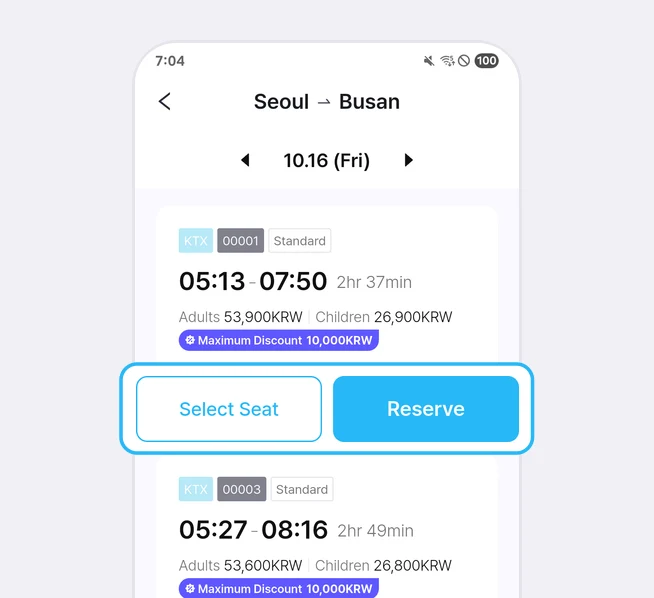
At the top of the results screen are the departure and arrival stations (Seoul, Busan) and the date (for example, 10.16 (Fri)), with ◀ and ▶ on either side of the date. When we tapped ▶ on 2026-10-15, the list switched straight to the next day's trains without going back to the search screen. Below that, train cards follow in order of departure time. Each train card shows the KTX label, the train number (such as 00001), the seat class ('Standard'), departure and arrival times, travel time, adult and child fares, the 'Maximum Discount' badge, and the [Select Seat] and [Reserve] buttons.
When we searched on the evening of 2026-10-15 for trains from Seoul to Busan the next day (Friday, October 16), the first three trains were these (app 1.3.0). On 2026-10-16, the first three trains for October 23 also had the same times and fares.
| Train | Departs | Arrives | Travel time | Adult fare | Child fare | Maximum Discount badge |
|---|---|---|---|---|---|---|
| KTX 00001 | 05:13 | 07:50 | 2 hr 37 min | 53,900 KRW | 26,900 KRW | 10,000 KRW |
| KTX 00003 | 05:27 | 08:16 | 2 hr 49 min | 53,600 KRW | 26,800 KRW | 10,000 KRW |
| KTX 00005 | 05:58 | 08:43 | 2 hr 45 min | 53,400 KRW | 26,700 KRW | 10,000 KRW |
Even among these three trains, fares differed by a few hundred won and the travel time ranged from 2 hours 37 minutes to 2 hours 49 minutes. The 2026-10-16 same-day list also had a train costing 48,200 KRW for an adult that takes 3 hours 10 minutes (the 21:38 KTX 00113). Don't just look at the departure time; compare arrival times and fares too. The difference between Seoul Station and Suseo Station, fares at other times of day, and fares by seat class are covered in Seoul → Busan KTX: Complete Guide to Booking, Fares & Travel Time.
The train number appears up to the step 4 booking screen, but after payment the order details and ticket screens showed only 'KTX', not a number like 00001 (2026-10-16, app 1.3.0). Write down the train number and departure time of the train you choose when you book.
Sold-out trains and same-day booking
Most same-day trains may show as sold out. Around 12:20 on 2026-10-16, we searched for Seoul-to-Busan trains leaving after 12:47 that day (app 1.3.0, English screen). Of the 42 trains we saw while scrolling to the end of the list, 39 had a 'Sold Out' label, and the only ones whose buttons we could tap were 3 night trains (departing 21:38, 22:28, and 22:49). Sold-out cards show no fare, and their [Select Seat] and [Reserve] buttons are gray and can't be tapped. With the 22:28 train, we could get as far as the seat map and the booking screen (we didn't pay).
The app's notice says the cars and seats you can book on LACHA are allocated to travel agencies, so they may differ from what the Korail website shows. That means this screen can't tell you whether a train shown as sold out on LACHA is also sold out on Korail. Other ways to book, such as Korail's official channels, are in How Foreigners Can Book KTX Tickets.
When we searched at 22:47 on 2026-10-15 for trains after 23:13 that day, the app showed the message 'No results found.' In that case, tap ▶ next to the date to see the next day's trains.
The 'Maximum Discount' badge
The 'Maximum Discount' amount on a train card varies by train. When we searched on the night of 2026-10-15, the first trains on 2026-10-16, 2026-11-15, 2026-11-16, and 2026-12-15 all showed 10,000 KRW, but the 05:58 KTX 00005 on 2026-11-16, which we checked at the same time, showed 5,000 KRW. Among that night's trains we looked at during the day on 2026-10-16, the 21:38 KTX 00113 showed 3,000 KRW, and the 22:28 and 22:49 trains showed 5,000 KRW (app 1.3.0, English screen).
This amount doesn't appear again on the booking screen, so write down the maximum discount of the train you choose too. You'll use it as your reference when picking a Lacha T Voucher amount in step 5.
[Select Seat] vs. [Reserve]
- [Select Seat]: Opens the seat map so you pick your car and seat yourself.
- [Reserve]: Skips seat selection and goes straight to the booking screen. The seat details on the booking screen say 'Auto Select', and after payment the order details show the car and seat you were given (2026-10-16 example: Car 17 10A).
Caution: The app's notice says that if you don't choose a seat, your car and seat are assigned automatically and can't be changed. If you need a window seat or seats next to the rest of your group, go in with [Select Seat].
Picking a seat on the seat map
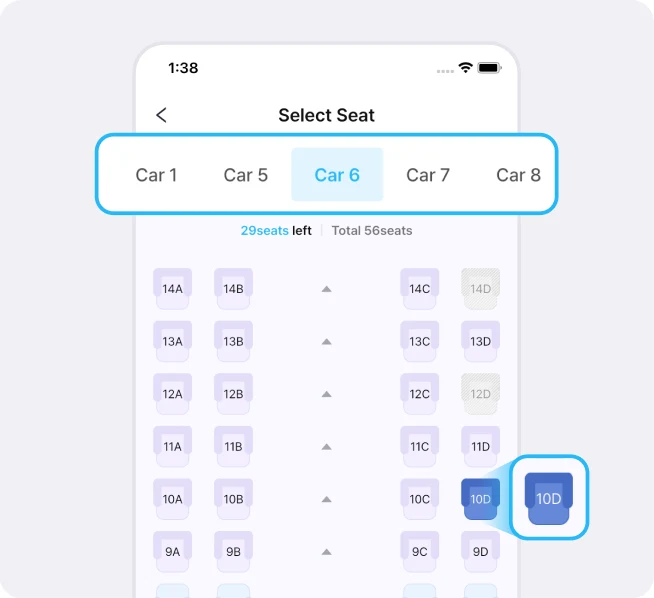
Tap [Select Seat] to open the 'Select Seat' screen. Car tabs run across the top (2026-10-15 example: Car 1, Car 5, Car 6, Car 7, Car 8), and choosing a tab shows that car's seat map. Below the tabs you'll see the seats left and the total number of seats, in a form like '45seats left | Total 56seats'.
Seats are labeled with a row number and a letter from A to D, such as 14A, 14B, 14C, and 14D. Seats that are already sold are grayed out with diagonal stripes and can't be tapped. Tap an empty seat and it turns dark blue, and to the left of the [Reserve] button at the bottom of the screen you'll see how many seats you've picked out of how many you need, such as '1 / Select 1seats' (2026-10-15).
Here's a summary of the app's notices on the seat screen.
- You can only pick seats that can be tapped, as many as the number of travelers.
- Tap a seat you picked by mistake once more to deselect it.
- If you pick fewer seats than passengers, you'll see 'Please choose ○ seats to proceed.', and if you pick more than allowed, you'll see 'Exceeded the number of selected seats.'
- The cars and seats you can book are allocated to travel agencies, so they may differ from the Korail website. The car tabs may even jump from Car 1 to Car 5.
- Seat direction may change depending on how the train cars are coupled.
When you've picked all your seats, tap [Reserve] at the bottom of the screen to move on to the booking screen (on the seat map, the bottom button has the same name as the [Reserve] button in the train list). Before you pick a seat, that spot shows a button that gives you a seat automatically, labeled Auto Select (English screen, 2026-10-15).
4. Check the train details and enter purchaser and passenger information
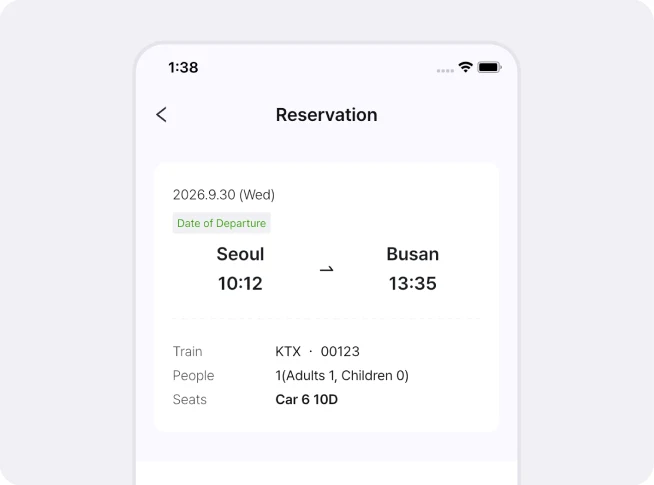
Steps 4 to 6 all happen on one 'Reservation' screen that you fill in from top to bottom as you scroll. The order is train details, Customer Information (Required), Passenger Info, Ticket, Use LACHA Money, Payment Method, Payment amount, Agreement, and Read before booking train tickets, with [Confirm] at the very end (2026-10-16, app 1.3.0). There was no button between sections to take you to the next one.
Train details card
In the top card of the 'Reservation' screen, check the date and 'Date of Departure' tag, the departure and arrival stations and times, Train (KTX and the train number), People (for example, 1(Adults 1, Children 0)), and Seats (2026-10-15, 10-16). If you came in through [Reserve], Seats will say 'Auto Select'. If the date or train is wrong, go back with the back arrow (<) at the top left and choose again.
Customer Information (Required)
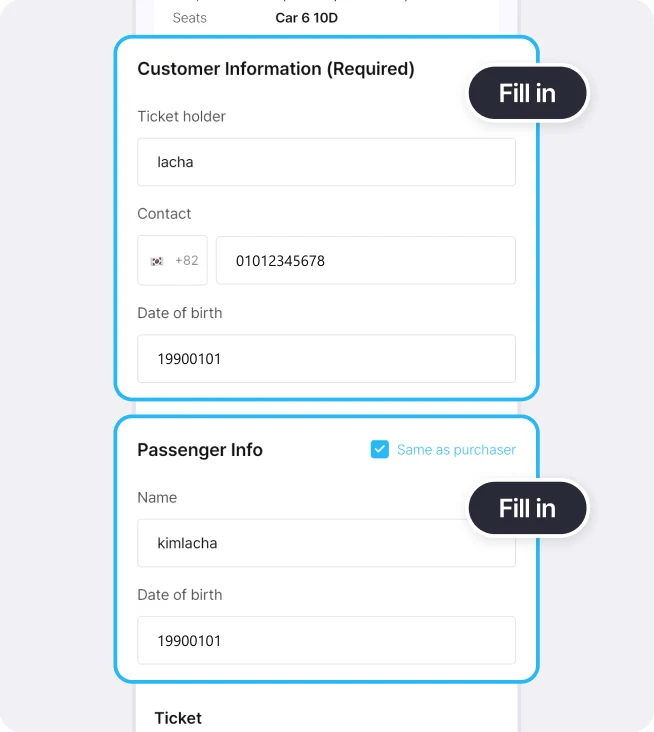
Below the card, the 'Customer Information (Required)' section has three rows (2026-10-15, 10-16).
| Field | What the screen shows | How to fill it in |
|---|---|---|
| Ticket holder | The logged-in account name was already filled in | Check the name that's filled in |
| Contact | A flag and +82 field on the left, and a 'Please enter your phone number.' field on the right | Choose a country code and enter your phone number |
| Date of birth | 'Please select your date of birth.' | Tap the field and pick from the calendar, and it's entered as 8 digits (year, month, day) |
Phone number and country code
- Korean number: Leave +82 as it is and enter your mobile number starting with 0, without hyphens (for example, 01012345678). The booking we paid for on 2026-10-16 was made this way.
- Overseas number: Before entering the number, tap the flag and +82 field on the left first. A full country list with a search box opens (starting with +93 Afghanistan). On 2026-10-15 we searched for Japan and chose +81, and the field changed to the Japanese flag and +81 (app 1.3.0, English screen). We couldn't confirm whether to drop the leading 0 of an overseas number, whether a booking goes all the way through with an overseas number, or whether notifications reach that number.
Entering your date of birth
Tap the date of birth field and a calendar opens instead of a keyboard (2026-10-16, app 1.3.0). For a booking with a travel date of October 23, the calendar first opened at October 2013 (2013.10). The 23rd was already selected in blue, and dates from the 24th onward were grayed out. Don't confirm in this state; pick your birth date in the order below.
- Tap the year and month at the top of the calendar (for example, 2013.10) to open a date picker with a list of years. At first it showed 1996 to 2013. For an earlier year, scroll through the year list.
- Tap your birth year and the same month of that year appears (for example, October 1996). Move to your birth month with ‹ › at the top of the window, tap the day you were born, then tap the confirm button at the bottom of the window.
- Back on the calendar, check that your birthday is selected in blue, then tap the blue confirm button below.
The field then fills in with 8 digits (year, month, day). For example, if you were born on May 1, 1990, it's 19900501. If the format doesn't fit, you'll see 'Invalid date of birth. Please enter in format YYYYMMDD' (app notice).
Passenger Info
Below that, enter the passenger's name and date of birth in the 'Passenger Info' section.
- If the purchaser is the one traveling, check [Same as purchaser] at the top right. On 2026-10-16, checking it filled in the passenger's name and date of birth with the same values as the purchaser's.
- The name field's hint shows the passenger type and number, such as 'Adults 1 Name'. If several people are traveling, a notice in the app asks you to enter the names and dates of birth of all passengers.
- If the purchaser's date of birth doesn't fit the passenger type (adult or child) chosen in step 2, [Same as purchaser] can't fill it in automatically. You'll then see 'The purchaser’s birth date does not meet the ○○ requirement, so it cannot be entered automatically.' (app notice).
Caution: The phone number and date of birth are required fields. On 2026-10-16 the booking went through payment with the passenger name left as the account name (LachaGuide). The screen gives no guidance on whether the name must match your passport exactly, so we couldn't confirm it.
Traveling with children
Adults and children are split by birth date, based on the travel date. Compare the birth dates shown in the step 2 passenger window with each passenger's date of birth. We only checked the payment amount for 1 adult. We couldn't confirm how the voucher and discount apply when a child is traveling with you, so be sure to look at the expected payment amount before moving on.
5. Choose a Lacha T Voucher amount and a payment method
The 'Ticket' section
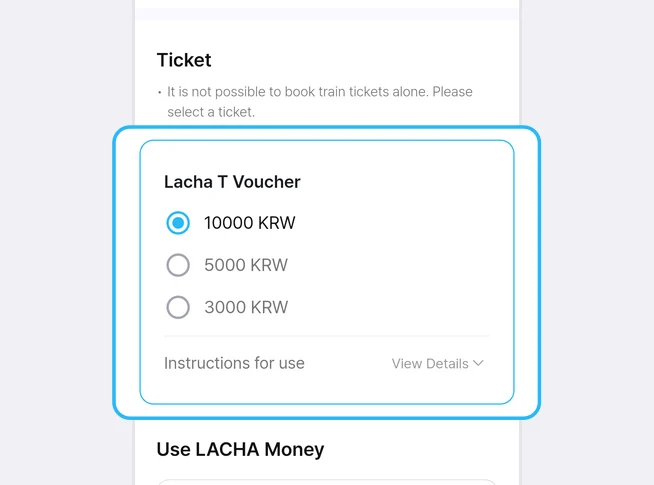
Below Passenger Info is the 'Ticket' section. At its top is the notice 'It is not possible to book train tickets alone. Please select a ticket.' (2026-10-15, 10-16). That's why you have to pick one of 10000 KRW, 5000 KRW, or 3000 KRW under 'Lacha T Voucher'. When you first open the screen, 10000 KRW is selected.
The 'KTX Cancellation Regulations' say the same thing. They state that you can't book only the train ticket, that it must be bought together with an optional product such as an admission voucher, and that the price of the train product includes a travel agency service fee (English original, 2026-10-16).
Instructions for use [View Details]
Tap [View Details] on the 'Instructions for use' line below the Lacha T Voucher options to expand the notice (we expanded it on the English screen on 2026-10-16). It reads as follows.
- How to Use Lacha T: 'Lacha T points can be used later for Lacha transportation services such as KTX, taxis, and express buses.'
- 'How to register a coupon: Lacha App → My Page → Order History → Train Reservation Details → Tap the Lacha T button'
But after payment on 2026-10-16, the order details screen had no separate 'Lacha T' button or point-crediting button; instead it showed the Lacha T Voucher card with a download-style icon on its right (step 7). The LACHA guide images say the amount you choose is deducted from your next booking, and that tapping the voucher card in the order details adds that amount to your LACHA Money balance. We couldn't confirm on the app screens how this works, whether Lacha T points are the same thing as LACHA Money, how long they're valid, or what happens to the voucher if you cancel the booking.
How the voucher amount changes the expected payment amount
Every time you change the voucher amount, the numbers in the 'Payment amount' section below are recalculated. Here's what we saw on 2026-10-15 and 10-16 for Seoul-to-Busan trains with 1 adult (app 1.3.0, English screen, without paying).
| Train (date checked) | Train card's maximum discount | Voucher chosen | Price | Combined product amount | Discount Amount | Expected payment amount |
|---|---|---|---|---|---|---|
| October 16, 05:13 KTX 00001 (10-15) | 10,000 KRW | 10000 KRW | 53,900 KRW | 10,000 KRW | -10,000 KRW | 53,900 KRW |
| December 15, 05:13 KTX 00001 (10-15) | 10,000 KRW | 5000 KRW | 53,900 KRW | 5,000 KRW | -5,000 KRW | 53,900 KRW |
| October 16, 22:28 KTX 00083 (10-16) | 5,000 KRW | 10000 KRW | 53,900 KRW | 10,000 KRW | -5,000 KRW | 58,900 KRW |
| October 16, 22:28 KTX 00083 (10-16) | 5,000 KRW | 5000 KRW | 53,900 KRW | 5,000 KRW | -5,000 KRW | 53,900 KRW |
| October 16, 22:28 KTX 00083 (10-16) | 5,000 KRW | 3000 KRW | 53,900 KRW | 3,000 KRW | -3,000 KRW | 53,900 KRW |
In all five cases we checked, the expected payment amount was the Price plus the Combined product amount minus the Discount Amount. The Discount Amount matched whichever was smaller, the voucher you chose or the train card's maximum discount. So on the 22:28 train, whose maximum discount was 5,000 KRW, leaving the default 10000 KRW selected made the expected payment amount 58,900 KRW, 5,000 KRW more than the fare, while choosing 5000 KRW or 3000 KRW brought it to 53,900 KRW, the same as the fare.
Caution: The voucher amount starts at 10000 KRW. If the train card's maximum discount is less than 10,000 KRW, choose a voucher equal to or smaller than the maximum discount. If you didn't write down the maximum discount, check whether the expected payment amount in the 'Payment amount' section is larger than the Price before you enter anything in 'Use LACHA Money'. If it is, lower the voucher amount until the expected payment amount equals the Price.
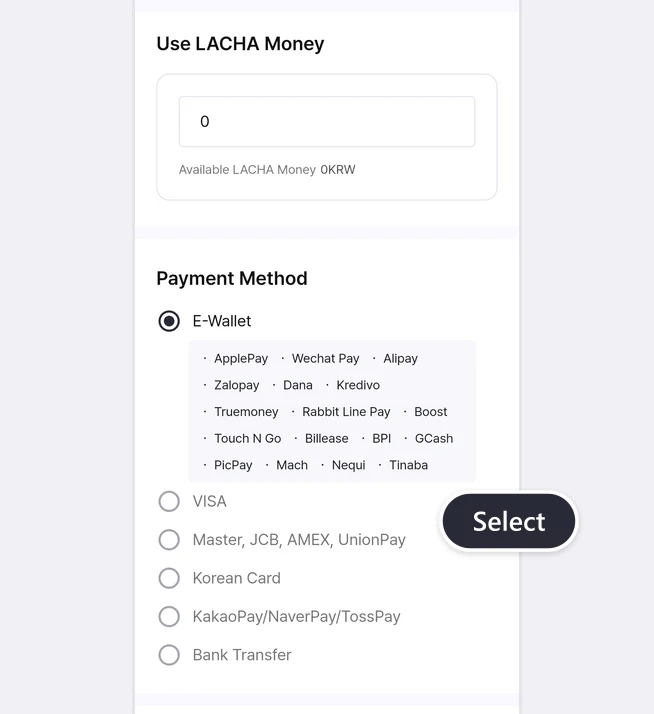
The 'Use LACHA Money' section
Below the voucher, the 'Use LACHA Money' section has a field where you type the amount to use, plus 'Available LACHA Money' (your balance). Even if you have a balance, the field shows 0 (2026-10-16, an account with a 100,000 KRW balance, app 1.3.0). To pay entirely with LACHA Money, choose the voucher first, then type the same amount as the expected payment amount in the 'Payment amount' section into the field. On 2026-10-16, after choosing the 3000 KRW voucher and entering 53,900, the 'Payment amount' section changed to Use LACHA Money -53,900 KRW and an expected payment amount of 0 KRW. If you enter more than your balance, an 'Available balance exceeded' window appears and the field goes back to 0 (2026-10-16, entering 1000 on an account with a 0 KRW balance).
If you enter the full expected payment amount, the 'Payment Method' section disappears and the 'Payment amount' section comes right after 'Use LACHA Money'. In that case you don't need to choose a payment method (2026-10-16, app 1.3.0, Korean-language and English screens).
The 'Payment Method' section
Choose one way to pay whatever LACHA Money doesn't cover. When the screen opens, E-Wallet is selected (2026-10-15, 10-16, app 1.3.0). To pay with a card like VISA, tap that row to switch. The list was in this order.
| Payment option | Description |
|---|---|
| E-Wallet | ApplePay, Wechat Pay, Alipay, Zalopay, Dana, Kredivo, Truemoney, Rabbit Line Pay, Boost, Touch N Go, Billease, BPI, GCash, PicPay, Mach, Nequi, Tinaba (17 in total) |
| VISA | VISA cards |
| Master, JCB, AMEX, UnionPay | Four card brands grouped as one option |
| Korean Card | Cards issued in Korea |
| KakaoPay/NaverPay/TossPay | Three Korean mobile payment services grouped as one option |
| Bank Transfer | Bank transfer |
The 17 names under E-Wallet are only listed as wallets you can use; there was no way to pick one of them on this screen. The list ended at Bank Transfer, with no Virtual Account option (the recharge screen list did have one). We couldn't confirm whether Virtual Account appears under certain conditions, or whether each card and e-wallet actually gets approved.
6. Check the payment amount and tap [Confirm]
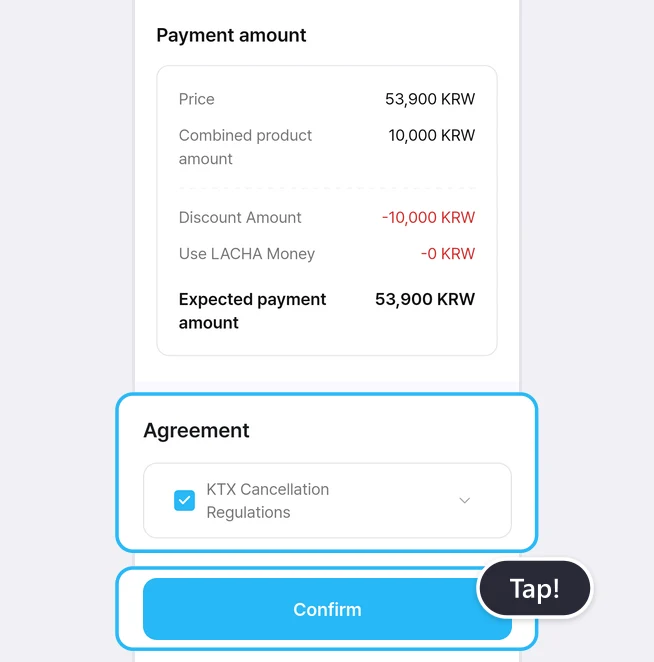
The 'Payment amount' section
Check the final amount in the 'Payment amount' section below the payment methods. The values in the table below are from the 2026-10-15 screen for the 05:13 Seoul-to-Busan KTX 00001 on October 16, 1 adult, automatic seat assignment, and a 10000 KRW Lacha T Voucher.
| Line | Meaning | 2026-10-15 example |
|---|---|---|
| Price | For a 1-adult booking, the same as the adult fare on the train card | 53,900 KRW |
| Combined product amount | The same as the Lacha T Voucher amount you chose | 10,000 KRW |
| Discount Amount | The amount subtracted, shown in red | -10,000 KRW |
| Use LACHA Money | The amount you entered in the 'Use LACHA Money' section | -0 KRW |
| Expected payment amount | The final amount, in bold | 53,900 KRW |
In the 2026-10-16 booking (05:13 KTX 00001 on October 23, 3000 KRW voucher, 53,900 entered as LACHA Money), the screen showed Price 53,900 KRW, Combined product amount 3,000 KRW, Discount Amount -3,000 KRW, Use LACHA Money -53,900 KRW, and Expected payment amount 0 KRW.
Agreeing to the terms
Below that, check 'KTX Cancellation Regulations' in the 'Agreement' section. Until you check it, the [Confirm] button at the very bottom is gray, and once you check it, it turns blue (2026-10-16, app 1.3.0). The app's notice text also includes the line 'You must agree to all terms and conditions to make a booking.' Tap the ⌄ to the right of the checkbox to expand the full rules. The rules we expanded on the English screen on 2026-10-16 have four parts: special terms on cancellation fees, important notes on use, compensation for delays and service suspension, and payment refund processing. The key points are summarized in the 'LACHA KTX ticket cancellation fees, refunds, and delay compensation' section below.
'Read before booking train tickets'
Below the terms, 'Read before booking train tickets' has nine lines (2026-10-15, 10-16). The first three are in red.
- Optional products (admission vouchers/coupons) can't have their validity extended and aren't refunded if unused. It tells you to check the expiration date before using them.
- If you cancel after booking, you can only cancel the whole combined product (train + admission voucher). It tells you to check the cancellation policy when you book.
- Booked tickets can't be changed (schedule, seats, or number of people). You have to cancel under the cancellation policy and book again.
- Train bookings are limited to Standard seats, departing from one day after the booking date up to one month ahead (see step 2 for how this differs from the calendar range).
- The train cars and seats you can book through a travel agency may look different from Korail's, but they are seats you can board.
- Trains are booked in real time, so a seat may be sold while you're booking. If that happens, you have to book again.
- One person can buy up to 9 tickets (adults and children combined), and infant seats (ages 0 to 6) are not sold.
- Features such as discounts for people with disabilities and national merit recipients, First Class bookings, commuter passes, and seats for passengers traveling with infants aren't offered.
- Bookings aren't available during special train transport periods such as major holidays.
If you need to travel by train over a major holiday, other options are in How to Book Chuseok & Seollal Holiday Train Tickets.
The payment confirmation window and booking completion
Once you've checked everything, tap the blue [Confirm] at the very bottom. A 'Check Payment' window then appears (2026-10-16, app 1.3.0). It says '○ KRW will be charged. Do you want to proceed?' and '(Even if payment is not completed, you can continue the payment from Order History within 10 minutes.)', with [Cancel] and [Confirm] buttons. If the amount is right, tap [Confirm].
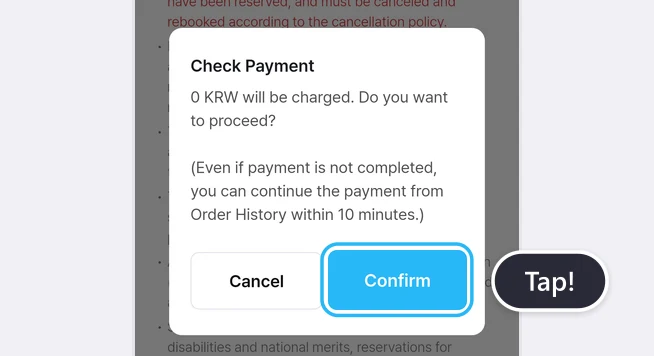
On 2026-10-16 we paid the full 53,900 KRW with LACHA Money, so the window said '0 KRW will be charged.', and tapping [Confirm] went straight to the booking completion screen. We couldn't confirm the payment screen that follows [Confirm] when you pay the rest by card or e-wallet.
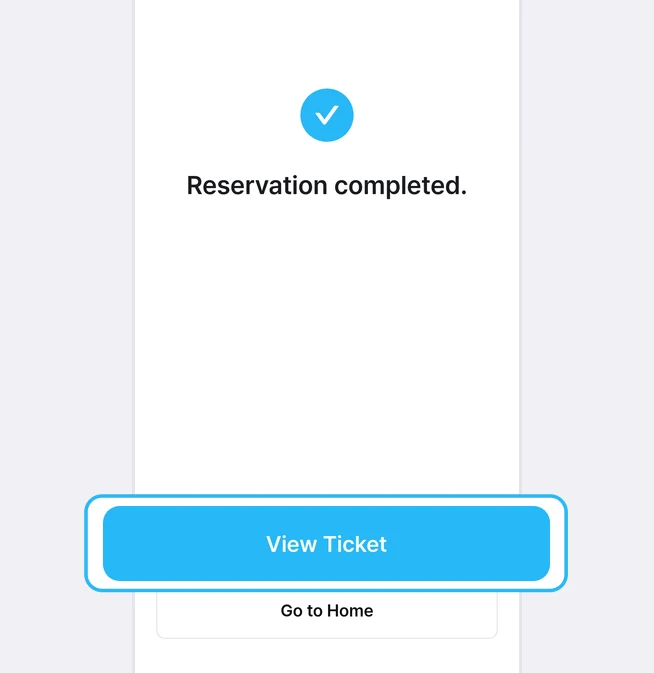
The completion screen shows a blue check mark, the message 'Reservation completed.', and two buttons below it: [View Ticket] and [Go to Home] (2026-10-16, app 1.3.0). Tap [View Ticket] to open the 'KTX Usage' order details from step 7. Even if you tap [Go to Home], you can open your ticket again from [Order History] (step 8).
7. Open your QR ticket in the order details and board the KTX
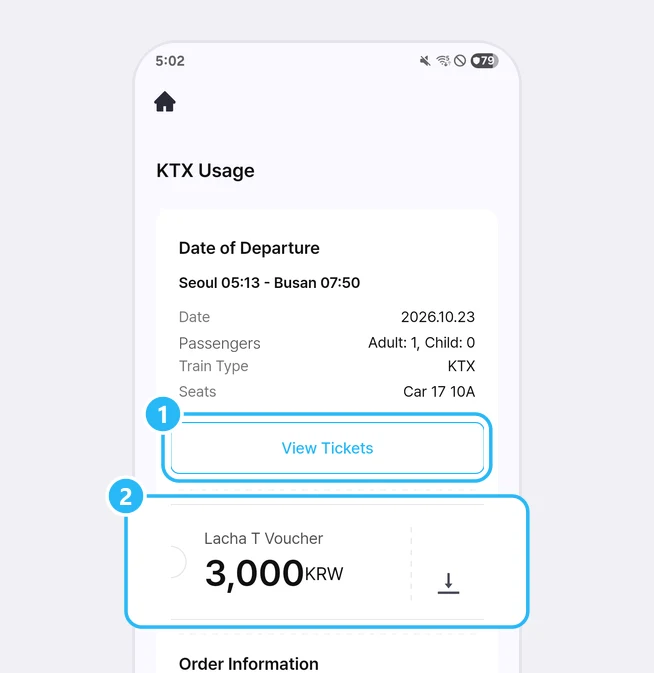
The 'KTX Usage' order details
The order details screen is titled 'KTX Usage'. At the top left there's a house icon instead of a back arrow. From top to bottom, the screen goes like this (2026-10-16, app 1.3.0).
| Order | What the screen shows | 2026-10-16 example |
|---|---|---|
| Date of Departure | Route with departure and arrival times, Date, Passengers, Train Type, Seats | Seoul 05:13 - Busan 07:50, 2026.10.23, Adult: 1, Child: 0, KTX, Car 17 10A |
| [View Tickets] | A single button right below the Date of Departure section | Opens the ticket screen |
| Lacha T Voucher card | The voucher amount you chose, with a download-style icon (↓ over an underline) past the dotted line on the right of the card | 3,000 KRW |
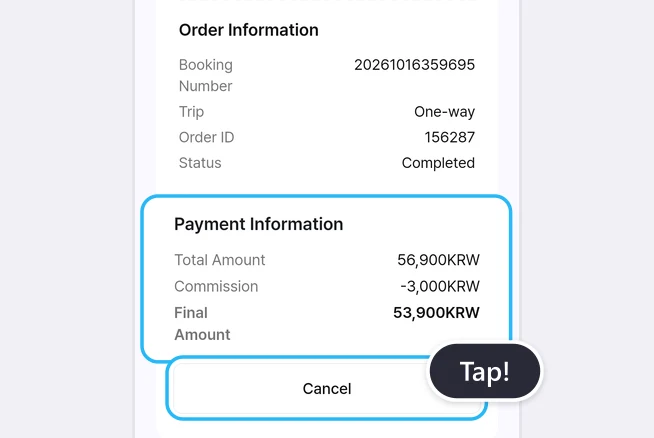
| Order Information | Booking Number, Trip, Order ID, Status | Trip One-way, Status Completed |
| Payment Information | Total Amount, Commission, Final Amount | 56,900 KRW, -3,000 KRW, 53,900 KRW (the same as the adult fare on the train card) |
| [Cancel] | At the very end of the screen, below Payment Information | Opens the cancellation window |
The bold Final Amount at the bottom, 53,900 KRW, was the same as the amount entered as LACHA Money in step 5 and the same as the adult fare on the step 3 train card. We've copied the 'Commission' line in Payment Information exactly as the screen shows it, and we couldn't confirm what this line means.
The LACHA guide images say that on this screen you open your QR ticket with 1, [View Tickets], and register the voucher by tapping 2, the Lacha T Voucher card (see 'Instructions for use' in step 5). We didn't tap it ourselves, so we couldn't confirm whether you tap the card or the download-style icon, or what the screen looks like after registering. The app's built-in text also includes the messages 'Voucher points have been successfully credited.' and 'Refunds are not available after barcode is issued. Would you like to continue?', but we couldn't confirm which screen shows them.
Caution: We couldn't confirm what happens to the voucher if you cancel the booking after registering it. Our 2026-10-16 cancellation was made without registering the voucher. If your plans might change, don't rush to register it.
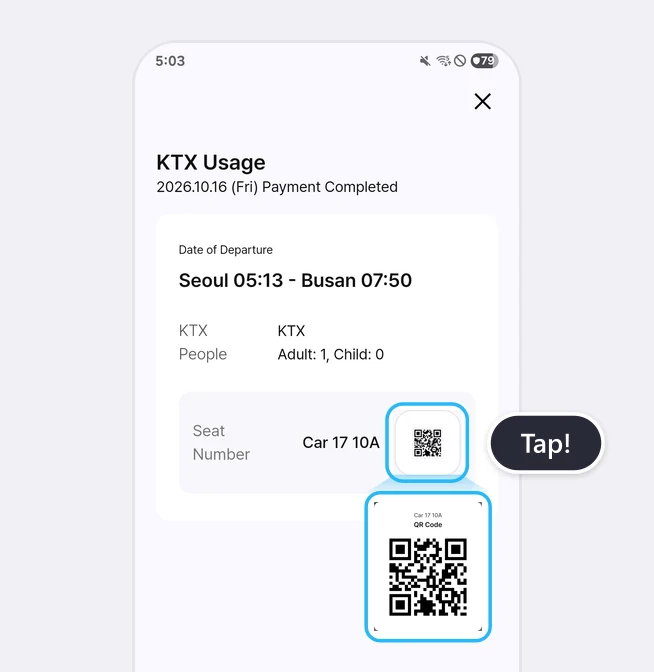
QR ticket
In the app, your train ticket is what the [View Ticket] and [View Tickets] buttons open. Tap [View Tickets] to open the ticket screen (2026-10-16, app 1.3.0). At the top are 'KTX Usage' and the payment date with 'Payment Completed' (for example, 2026.10.16 (Fri) Payment Completed), followed by the Date of Departure route and times, People, and 'Seat Number' (for example, Car 17 10A).
The date at the very top of the ticket screen is the date you paid. This screen doesn't show the travel date separately, so check your travel date on the 'Date' line of the Date of Departure section in the order details (for example, 2026.10.23) (2026-10-16, app 1.3.0).
Tap the QR icon next to the seat number and a large QR code opens in a window titled 'QR Code' with your car and seat number. The QR window and the ticket screen each closed with your phone's back button (there's also an X at the top right of the ticket screen). We couldn't confirm whether the ticket screen and QR code are shown separately for each person when you book for several people.
Boarding the KTX on your travel day
- Check your train details: Before heading to the station, tap your KTX order in [Order History] to open the order details, and check the date, departure time, and seat details (car and seat number). The app's notice also says 'Please check the train number and the seat number.'
- Skip the counter: According to the 'KTX Cancellation Regulations', you don't need to issue or exchange a paper ticket at a station counter on your travel day; just board using the car and seat shown in the KakaoTalk Alimtalk notification or your order details. We couldn't confirm whether Alimtalk notifications reach overseas phone numbers.
- Find your train: Go to the departure station you chose in the app (for example, Seoul Station). On the station departure board, find your train by departure time and destination (for example, Busan). Since the train number doesn't appear on the screens after payment, also check the number you wrote down in step 3. We couldn't confirm whether the app's train number (for example, 00001) appears in the same form on the board. Board the car shown in your order details and sit in that seat. How to find the platform and board at the station is covered in the 'From Booking to Boarding' section of Seoul → Busan KTX: Complete Guide to Booking, Fares & Travel Time.
- Show your QR code at ticket checks: According to the LACHA guide images, when the crew checks tickets on the KTX, just show the QR screen you opened with [View Tickets] and the QR icon.
- Getting off early: If you get off before your destination after departure, the fare difference for the remaining section isn't refunded.
The rules also say a few more things about boarding.
- You can transfer your ticket to someone else. However, the rules say that if resale for commercial purposes is detected, legal action may be taken.
- If you can't board for personal reasons, cancellation and refunds aren't available. If you think you won't make it, cancel in advance.
8. View your ticket again in [Order History]
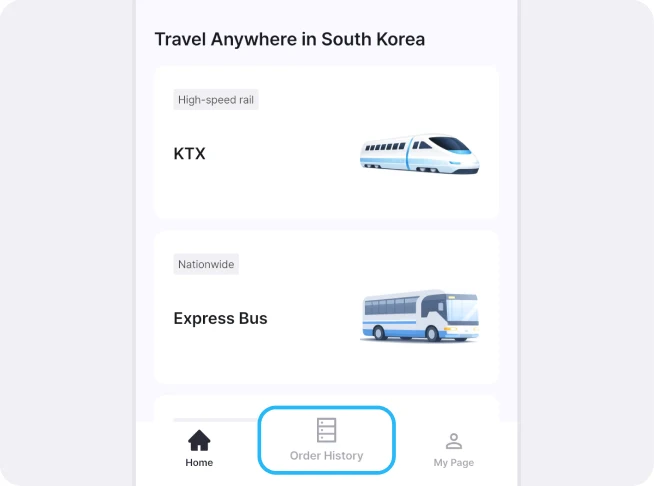
To open your ticket again later, tap [Order History] in the tab bar at the bottom of the Home screen (2026-10-15, 10-16, app 1.3.0). You can also go through Order History in the [My Page] menu (2026-08-30, app 1.2.33).
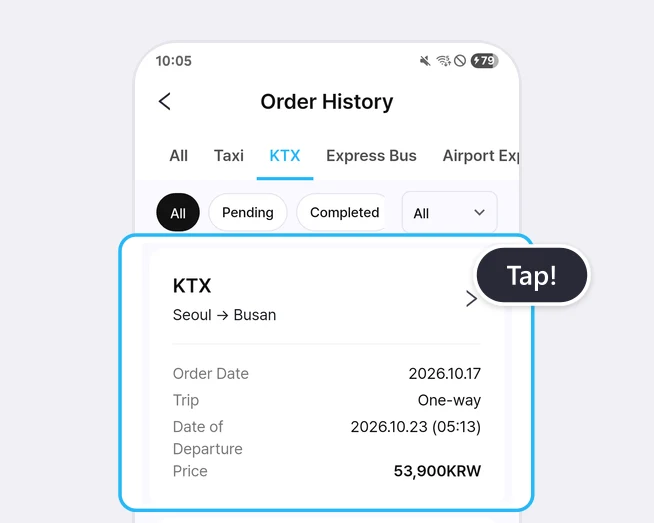
At the top of the 'Order History' screen are the All, Taxi, KTX, Express Bus, and Airport Express Railway tabs, and below them are chips for order status (All, Pending, Completed, and one for canceled orders) (2026-10-15, app 1.3.0). On the Korean-language screen (app 1.3.0), an order we paid for on 2026-10-17 appeared under the [KTX] tab as a card with 'KTX' and the route (Seoul to Busan) at the top and, below them, the Order Date (2026.10.17), Trip (One-way), Date of Departure (2026.10.23 (05:13)), and Price (53,900 KRW). Tapping the card opens the 'KTX Usage' order details. Canceled orders also stayed in the list, with 'Cancel' shown on the card. Once the order details open, tap [View Tickets] again; to cancel the booking, you also use [Cancel] at the bottom of these order details.
LACHA KTX ticket cancellation fees, refunds, and delay compensation
KTX tickets bought on LACHA are covered by the 'KTX Cancellation Regulations' in the terms section of the booking screen. Below is what the rules (in English) said when we expanded them on the app 1.3.0 booking screen on 2026-10-16. The rules state that because this is a discounted product, the special terms and cancellation fees below apply.
LACHA KTX ticket cancellation fee table
| When you cancel | Cancellation fee | What you get back |
|---|---|---|
| Up to 3 days before the travel date | None | Full amount |
| 2 days before the travel date | 15% | Amount minus 15% |
| 1 day before the travel date | 20% | Amount minus 20% |
| On the travel day, up to 1 hour before departure | 30% | Amount minus 30% |
| On the travel day, with less than 1 hour left before departure | 100% | Nothing |
| If you miss the train by arriving late or being unreachable by the departure time | Not eligible for a refund under the rules | Nothing |
This table applies only to KTX tickets bought on LACHA. Refund penalties for tickets bought directly from Korail follow different rules, covered in KTX Seat Classes, Discounts & Refund Rules.
- The rules don't say what amount the fee is charged on (the fare only, or the whole payment), so we couldn't confirm it.
- The rules say cancellation fees for optional products such as admission vouchers are applied separately.
- You can only cancel the whole combined product, not part of it.
- The schedule, number of passengers, and seats can't be changed. To change them, cancel the entire booking and book again.
- The rules say you can't cancel or change at a station counter, and the app's notice says you can't cancel, refund, or change through Korail (stations or customer center).
Working out LACHA KTX cancellation fees by date
The cancellation fee depends on how many days before the travel date you cancel. Applying the table above to a train departing at 05:13 on Friday, October 23 gives this.
| When you cancel | Cancellation fee |
|---|---|
| Up to Tuesday, October 20 | None (full refund) |
| Wednesday, October 21 | 15% |
| Thursday, October 22 | 20% |
| Friday, October 23, until 04:13 | 30% |
| Friday, October 23, after 04:13 | 100% (no refund) |
The rules don't give details such as whether the day changes at midnight, so on a borderline day it's safer to cancel a day early.
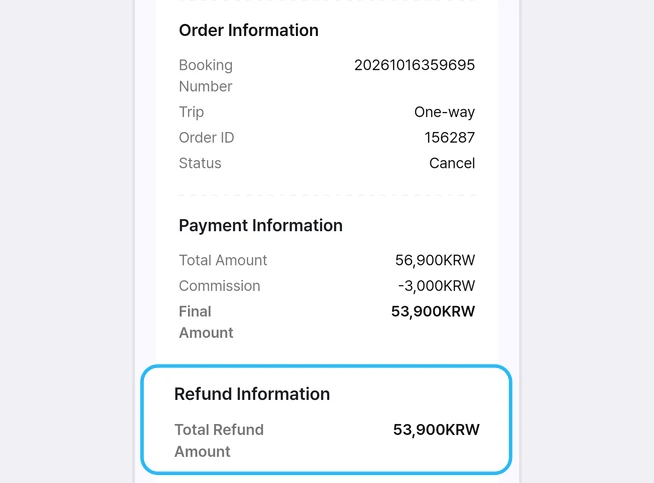
On 2026-10-16 we booked exactly this train (05:13 KTX 00001 on October 23) and canceled it 7 days before departure. Both the Total Cancellation Amount in the cancellation window and the Total Refund Amount in the order details were 53,900 KRW, the same as the Final Amount (app 1.3.0). That's the 'full refund up to 3 days before the travel date' case in the table.
How to cancel in the app
- Open the 'KTX Usage' order details. Right after booking, use [View Ticket] on the completion screen; later, use the KTX order card in [Order History] (step 8).
- Scroll to the very bottom and tap [Cancel] below Payment Information.
- A 'Cancel' window shows the 'Total Cancellation Amount'. Check the amount and tap [Cancellation Confirmed]. To back out, tap [Close].
- In the 'Your order has been successfully canceled.' window, tap [Confirm].
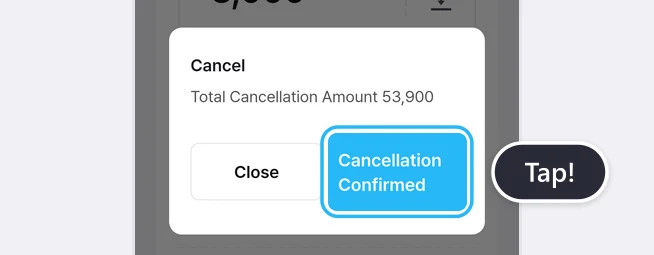
We canceled in this order on 2026-10-16 (app 1.3.0). Behind the 'Your order has been successfully canceled.' window, 'Refund Information' and the Total Refund Amount newly appeared at the bottom of the order details, and the [View Tickets] button was gone. Tapping [Confirm] in the window took us back to the Home screen. We couldn't confirm how the amount appears in the cancellation window when you cancel on a day that carries a fee, so be sure to check the Total Cancellation Amount before tapping [Cancellation Confirmed].
The fee rises to 15%, 20%, 30%, and 100% as the travel date gets closer, so to get more of your money back, cancel as soon as you're sure you can't travel.
Refund timing and the order in which fees are deducted
- Amounts paid by credit card, debit card, or Zero Pay are refunded within about 3 to 5 business days. If you still don't see the refund after that, the rules tell you to contact your card issuer.
- The rules say that on refund, the cancellation fee is deducted in this order: points, reward points, then card payment.
- When we canceled an order paid only with LACHA Money on 2026-10-16, the LACHA Money balance on the Home screen right after cancellation showed 100,000 KRW, the same as before payment (app 1.3.0).
When the train is late or service is suspended
- If the train is 20 minutes or more late for reasons attributable to the operator (not natural disasters), you can receive compensation under the Consumer Dispute Resolution Standards.
- Because this is a travel agency product, there's no automatic compensation. If your train was late, you need to request delay compensation from the LACHA Customer Center.
- If service is suspended for reasons attributable to the operator, you can get a refund of the fare for the unused section, and you request this from the LACHA Customer Center too.
| LACHA Customer Center | Details |
|---|---|
| Phone | 02-568-1220 |
| Calling from an overseas mobile phone | +82-2-568-1220 |
| Hours | Weekdays 09:00 to 17:00 |
| Closed | Weekends and public holidays |
Hours are weekday daytime only, so if your train was late on a weekend or at night, contact them during hours on the next weekday. Giving the booking number from 'Order Information' in the order details makes it easier to find your order. Also note down the train number and how late it actually was. We couldn't confirm which languages the customer center supports.
General rules, such as how much you get depending on the length of the delay, are covered in Money Back When Your KTX or Express Bus Runs Late. For tickets bought on LACHA, request compensation from the LACHA Customer Center first, as the rules above say.
Troubleshooting LACHA KTX booking problems
| Problem | Why | What to do |
|---|---|---|
| A sign-in screen appears, or you have no account | All the checks in this article were done while logged in | Tap [Sign In] at the top of the Home screen and log in with your email and password, or use [Register] or a social login button (2026-08-30, app 1.2.33) |
| You can't read the app text | The app language isn't set to one you can read | Switch to one of the 8 languages from the globe icon at the top right of the Home screen, and if yours isn't on the list, choose English |
| There's no field for choosing a departure time | The calendar has no time field, and dates other than today are listed from 00:00 in order of departure | Scroll down the results list to find a train at the time you want |
| Train cards say Sold Out and the buttons are gray | No seats bookable on LACHA are left. LACHA's seats are travel agency allocations and may differ from Korail's (39 of the 42 afternoon and night trains we saw in a midday search on October 16) | Choose a different time, or tap ▶ next to the date to see the next day's trains. Other ways to book are in How Foreigners Can Book KTX Tickets |
| A 'No results found.' message | There are no trains after the time you chose (when we searched at 22:47 on October 15 for same-day trains after 23:13) | Tap ▶ next to the date to see the next day's trains |
| Dates are grayed out in the calendar | They're in the past or outside the calendar range (about two months from today) | Pick a date within range. Keep in mind that 'Read before booking train tickets' allows up to one month |
| A passenger limit message | The app notice 'You can select up to ○ passengers.' The limit in 'Read before booking train tickets' is 9 tickets per person (adults and children combined) | Reduce the number of passengers to 9 or fewer |
| A message that no trains are available for your group size | The app notice 'No available trains for the selected number of passengers.' | Choose a different train or split your group into separate bookings |
| The date-of-birth calendar opens on an odd year, like 2013.10 | The calendar first opens with a date based on the travel date already selected | Tap the year and month at the top of the calendar to pick your birth year, then move to your birth month with ‹ › (step 4) |
| [Same as purchaser] doesn't fill in automatically | The purchaser's date of birth doesn't fit the passenger type chosen | Check the birth-date ranges in the passenger window and choose the passenger type again, or enter the passenger details yourself |
| A date-of-birth error message | The format or age range doesn't fit (app notice 'The selected passenger’s birth date does not meet the age requirement.') | Tap the field and pick again from the calendar (8 digits, for example 19900501), and check whether that passenger is an adult or a child |
| No Korean phone number | The phone number field starts with +82 | Tap the +82 field, search for your country, and change the country code (see step 4). We couldn't confirm whether payment goes through with an overseas number |
| An 'Available balance exceeded' window | You entered more than your balance in 'Use LACHA Money' | Set the field to 0 or no more than your balance, or top up with [Recharge] on the Home screen |
| The expected payment amount is higher than the Price | The voucher you chose is larger than the train's maximum discount (58,900 KRW with 10000 KRW chosen on the 22:28 train on October 16) | Switch to a voucher equal to or smaller than the train card's maximum discount (on that train, 5000 KRW or 3000 KRW gave 53,900 KRW, the same as the fare) |
| [Confirm] is gray and can't be tapped | You haven't checked the terms box (2026-10-16 screen) | Check 'KTX Cancellation Regulations' |
| The seat was sold while you were booking | Booking is in real time, so seats can sell in the meantime. The app notices also include 'Your product's selection time has expired. Please book again.' | Start the booking again from the beginning |
| A payment failure message | The app notice 'Payment failed. Please book again' | Going by the payment confirmation window, you can continue from [Order History] within 10 minutes |
| The ticket date differs from your travel date | The date at the top of the ticket screen is the payment date | Check your travel date on the 'Date' line of the Date of Departure section in the order details |
| You want to change the date or seat | Changes aren't possible after booking | Check the LACHA cancellation fee table, cancel, and book again |
| You missed your train | Under the rules, you aren't eligible for a refund if you don't board by the departure time | If you think you'll miss it, [Cancel] in advance (on the travel day, a 30% fee up to 1 hour before, and no refund after that) |
| Your train is 20+ minutes late | It's eligible for compensation if 20 minutes or more late for reasons attributable to the operator, but travel agency products get no automatic compensation | Request delay compensation from the LACHA Customer Center (02-568-1220, weekdays 09:00 to 17:00) |
| You're looking for First Class or disability discounts | LACHA's KTX booking doesn't offer these | Look into Korail's official channels (How to Book a KTX Wheelchair Seat) |
| Holiday trains can't be booked | Bookings are restricted during special transport periods (major holidays) | See the other options in How to Book Chuseok & Seollal Holiday Train Tickets |
You can download the LACHA app below.
Install the LACHA app and start from the KTX card on the Home screen.
Built to work without a Korean phone number or bank account, with overseas payment methods like Alipay, WeChat Pay, and Apple Pay. Taxi hailing plus KTX, express bus, and airport railroad (AREX) booking — all in one app.
Up to 60% off Korea transit with a coupon (max ₩3,000): enter code at sign-up. KTX gets up to 18% off on top
Download now


Frequently Asked Questions (FAQ)
Q1. Do I need a Korean phone number to book KTX on the LACHA app? A. The phone number (Contact) on the LACHA app's KTX booking screen is a required field, and we only confirmed a fully paid booking (2026-10-16, app 1.3.0) with a Korean number (+82). You can pick an overseas code (for example, Japan +81) from the country code list (2026-10-15), but we couldn't confirm whether a booking goes all the way through with an overseas number or whether notifications reach that number. When signing up for LACHA, the phone number was optional (2026-08-30, app 1.2.33).
Q2. How much is the fee if I cancel a KTX ticket bought on LACHA? A. Under the 'KTX Cancellation Regulations' in app 1.3.0 (checked 2026-10-16), KTX tickets bought in the LACHA app are fully refunded up to 3 days before the travel date, while 15% is deducted 2 days before, 20% 1 day before, and 30% on the travel day up to 1 hour before departure. Tickets bought directly from Korail have different fee rules. With less than 1 hour left before departure, the fee is 100%, so there's no refund. Cancel with [Cancel] at the bottom of the 'KTX Usage' order details in the app; you can't cancel at a station counter or through the Korail customer center. When we canceled a train 7 days out on 2026-10-16, the full Final Amount of 53,900 KRW was shown as the refund. Card refunds take about 3 to 5 business days.
Q3. How far ahead can I book KTX on the LACHA app? A. 'Read before booking train tickets' on the booking screen says only Standard seats can be booked, departing from one day after the booking date up to one month ahead (2026-10-15, 10-16, app 1.3.0). The date calendar opened wider than that, about two months ahead from today (to December 15 as of October 15). On 2026-10-16 we paid for a train 7 days out (October 23), and we could also get as far as the booking screen with a same-day night train. We couldn't confirm payment for same-day trains or dates more than a month away, so if you get stuck at the payment step, choose a date from tomorrow up to one month ahead instead.
Q4. Can I pay for KTX on the LACHA app with a foreign card or Alipay? A. The payment list on the KTX booking screen (2026-10-15, 10-16, app 1.3.0) had E-Wallet with 17 wallets including Alipay and WeChat Pay, VISA, Master/JCB/AMEX/UnionPay, Korean Card, KakaoPay/NaverPay/TossPay, and Bank Transfer, with E-Wallet selected at first. We only confirmed what's on the list, not whether each card or wallet actually gets approved. If you have LACHA Money topped up, you can type how much to use in 'Use LACHA Money' to subtract it from the expected payment amount. On 2026-10-16, entering 53,900 brought the expected payment amount to 0 KRW.
Q5. What is the Lacha T Voucher on LACHA's KTX booking screen? A. It's a voucher you have to choose along with your train ticket when booking KTX in the LACHA app. The app's notice says you can't book a train ticket on its own. You pick one of 10000, 5000, or 3000 KRW, and 10000 KRW is selected at first (2026-10-15, app 1.3.0). The app's instructions say Lacha T points can be used later for LACHA transportation services such as KTX, taxis, and express buses, and that after payment you register them with the Lacha T button in Train Reservation Details. What the 2026-10-16 order details screen actually showed was the Lacha T Voucher card and a download-style icon, and we couldn't confirm the screen after registering. On the 22:28 train we checked on 2026-10-16 (maximum discount 5,000 KRW), leaving 10000 KRW selected made the expected payment amount 58,900 KRW, 5,000 KRW more than the fare, so be sure to check the amount before you pay.
Note: The screen descriptions in this article are based on the Korean-language screens of the Android LACHA app version 1.3.0 (checked 2026-10-15; actual booking, payment, and cancellation on 2026-10-16), what we checked on the English screens of the same version (2026-10-15 and 10-16), the notice text built into the same app version, and the KTX booking guide images made by LACHA (received 2026-10-15). Button names and on-screen messages are quoted as they appear in the English version of the app. Sold-out trains, the no-results message, the button that assigns a seat automatically, the country code list, the expected payment amount for each voucher amount, and the balance-exceeded window in 'Use LACHA Money' were checked on the English screen. The sign-in button and sign-in screen, sign-up fields, station list, and passenger window layout are from checks on 2026-08-30 (app 1.2.33). On 2026-09-15 (app 1.2.37) the discount badge only appeared while logged in and only on trains departing the next day or later, but on 2026-10-16 (app 1.3.0), while logged in, same-day night trains also showed 3,000 KRW and 5,000 KRW badges. The English 'Instructions for use' ends the registration steps with 'Tap the Lacha T button', while the Korean version of the same notice says to tap a point-crediting button. The 2026-10-16 booking was paid with LACHA Money and canceled right away. Cancellation fees, refunds, and delay compensation are taken from the English original of the 'KTX Cancellation Regulations' expanded on the booking screen on 2026-10-16. The original rules give the cancellation path as 'Website > My Account > Order Details' and the path for a copy of your ticket as My Account, Order History, View Ticket. The combined product is described as a train ticket plus a 'Bple regional admission voucher', and we couldn't confirm whether this is the same as the Lacha T Voucher. The app's built-in text also includes the line 'Tickets will be sent one business day prior to the departure date.', but it didn't appear on the screens we checked on 2026-10-15 and 10-16 or in the images in this article, and we couldn't confirm what it means. Fares, maximum discounts, and expected payment amounts are examples from the days we checked and vary by date, train, and voucher. We couldn't confirm, and so don't state definitively, whether a booking goes all the way through with an overseas phone number, the card and e-wallet payment screens and actual approval, how Lacha T points relate to LACHA Money and how long they're valid, what happens to the voucher when you cancel a booking, or what the points and reward points in the rules refer to in the app. We also couldn't confirm payment for same-day trains or dates more than a month away, the cancellation amount on a day that carries a fee, the screens when not logged in (including whether the discount badge appears in 1.3.0), or the iOS screens. Button names, the order of steps, and the rules may change when the app is updated, so please recheck against the app screen and terms when you book. Last updated 2026-10.